

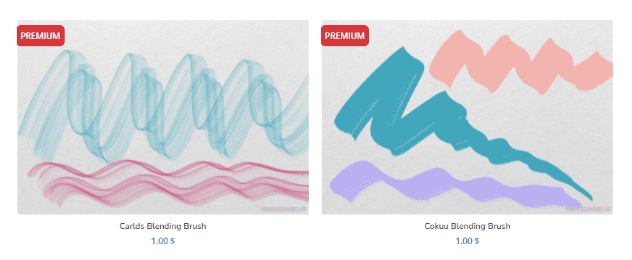
Procreate is a popular digital painting and illustration app that has become a go-to tool for many artists and designers. One of the most versatile features of Procreate is its blending tool, which allows users to blend colors, textures, and shapes seamlessly. In this post, we’ll take a closer look at what the blending tool is and how to use it effectively in your digital artwork.
What is the blending tool?
The blending tool in Procreate is a feature that allows users to blend colors and textures together to create a seamless transition. Essentially, it works by softening the edges between different colors or textures, making them appear more fluid and natural. It is a key tool in digital painting and illustration as it enables artists to create realistic-looking artwork that mimics traditional painting techniques.
How to use the blending tool
To use the blending tool in Procreate, you will need to have a basic understanding of how layers work. Layers are like sheets of paper that can be stacked on top of one another, and each layer can be edited independently. The blending tool can be used on individual layers or on multiple layers at once.
Here’s a step-by-step guide on how to use the blending tool in Procreate:
Step 1: Create a new layer
To start, you’ll need to create a new layer in Procreate. This can be done by tapping the “+” icon in the Layers panel, located on the right side of the screen. Once you’ve created a new layer, you can start painting or adding textures to it.
Step 2: Choose your colors
Next, you’ll need to choose the colors you want to blend together. You can do this by selecting the Brush tool and then selecting the colors you want to use from the Color panel. It’s important to choose colors that are adjacent to one another on the color wheel for the best results.
Step 3: Apply the blending tool
Once you’ve painted your colors onto the canvas, you can start blending them together using the blending tool. To access the blending tool, tap on the Smudge tool located in the Brush Library panel. From there, you can select the type of brush you want to use for blending.
To apply the blending tool, simply drag your finger or stylus over the area you want to blend. The longer you drag, the more the colors will blend together. You can also adjust the strength of the blending tool by changing the Opacity or Flow settings located in the Brush Studio panel.
Step 4: Refine your blend
After you’ve applied the blending tool, you may need to refine your blend further. To do this, you can use the Eraser tool to erase any areas where the blending looks too harsh. You can also use the Brush tool to add more color or texture to the blend if needed.
Step 5: Repeat as needed
Once you’ve perfected your blend, you can repeat the process on other layers or areas of your artwork as needed. The blending tool can be used on multiple layers at once, making it a versatile tool for creating complex digital artwork.
Tips for using the blending tool
While the blending tool is a powerful feature in Procreate, it can take some practice to master. Here are a few tips to help you get started:
Tip 1: Choose the right brush
The type of brush you use for blending can make a big difference in the final result. Experiment with different brush types and settings to find the right combination for your artwork.
Tip 2: Use layers
Using layers is key to getting the most out of the blending tool. By using multiple layers, you can blend colors and textures without affecting the underlying layers.
Tip 3: Be patient
Blending colors and textures takes time and patience
